
You’ve just been invited to speak at a conference, a Tableau User Group, or another speaking engagement. Yay!! Time to celebrate and dance!

Now comes the next step: creating a presentation that’s not only engaging, but includes a smooth, compelling Tableau demo (no pressure, right?!). It can feel like a lot, but it doesn’t have to be overwhelming. Here are my go-to tips to help you deliver a presentation and demo that are clear, confident, and (dare I say?) actually enjoyable.
Craft your presentation
Creating a great presentation isn’t just about showing off everything you know. It’s about guiding your audience through something they can actually follow and remember.
- Identify key takeaways. What do you want people to walk away with? Write those down and use them to shape your content. If something doesn’t support those takeaways, it might not need to be there.
- Share your agenda. People like to know what to expect, so tell them! Walk through what you’ll be covering and set expectations, including when they should ask questions.
- Provide resources: Offer downloadable workbooks, links to slides, or a resource list, and let people know you’ll share them. When your audience isn’t scrambling to take notes, they can pay more attention.
- Show them the end product first. If you’re demonstrating something specific (viz in tooltips, dynamic zone visibility, parameter actions, etc.), show your audience the final result before jumping into the demo, otherwise your audience is just watching you click around wondering, “Where is this going?”
- Explain use cases. Context is key. Share practical use cases for the things you’re demonstrating. Cool tricks are fun. Useful tricks are memorable. Tell people when and why they would use what you’re showing. That’s what makes it stick.
- Show the problem, then solve it. Instead of jumping straight into how something works, start with why it matters. Show a scenario or pain point your audience can relate to and has likely encountered, then show them how to fix it. This creates relevance and curiosity and keeps them invested.
- Keep your charts and design simple. Unless design is the focus of your presentation, let your demo take center stage. Clean, simple visuals help keep attention on your message instead of distracting from it.
Audience Empathy
The difference between a good presentation and a great one? Thinking about what it feels like to be on the receiving end (especially when a Tableau demonstration is involved). When I’m buidling out a demo, I always ask myself:
- Can they see what I’m doing?
- Can they understand what I’m doing?
- Can they keep up?
Can they see what I’m doing?
Tableau looks great on your laptop, but tiny on a large projector. Help your audience out!
- Use large font. Adjust your worksheet formatting to at least size 15 font or larger. Pro tip: set the default size in your workbook level formatting.
- Use bold colors. Presentation lighting can be unpredictable, and subtle colors like greys and neutrals often get washed out. Choose colors that are easy to read from the back of the room.
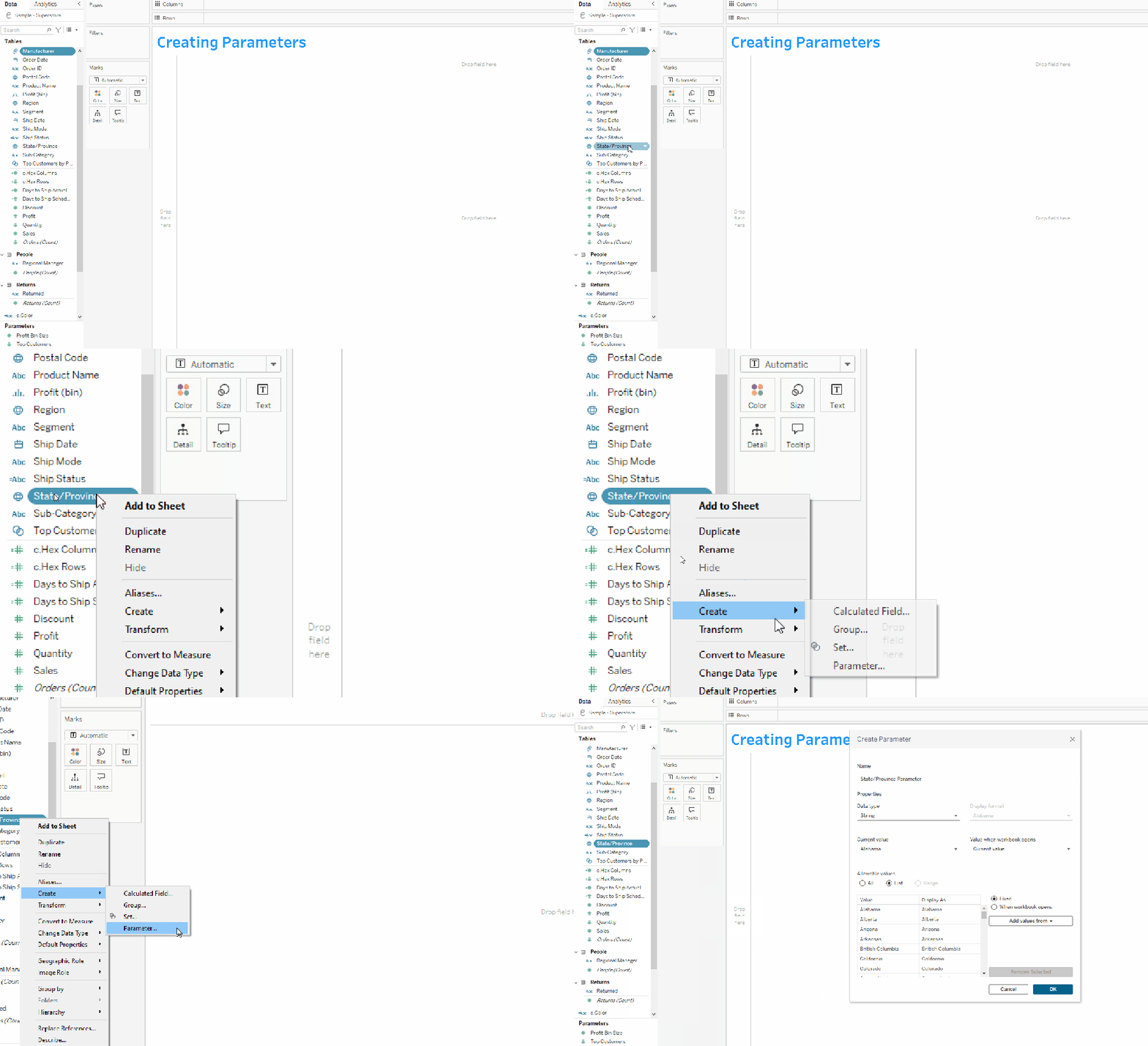
- Zoom. Tableau’s interface is small…like REALLY small for presentations. For calculated fields, zoom in using Ctrl + Scroll. When focusing on other areas, I like to use ZoomIt, which allows you to zoom in and out with keyboard shortcuts:
Can they understand what I’m doing?
Seeing your actions on screen isn’t enough. Your audience needs to follow along with every mouse click and keyboard stroke.
- Say everything you’re doing out loud. Your audience can’t see your keyboard. Narrate like you’re on a cooking show:
- “I’m holding Ctrl”
- “I’m right-clicking”
- Explain the “why”, not just the “what.” Narrrating your actions is great; connecting them to their purpose is even better. Instead of, “I’m creating a calculated field.” Say, “I’m creating a calculated field so I can dynamically control what shows in this view.”
- Check in with your audience. Engage your audience by asking questions like, “Does this make sense?” or “Is everyone with me?” If you see nods, move on. If you spot confusion, pause and clarify.
- Reengage your audience. Attention drifts. It just does. Pull people back in with questions like, “How many of you have run into this before?” These moments create a dialogue and help pull focus back from distractions like phones.
- EILI5: In the words of the great Michael Scott:

Your audience likely has mixed skill levels, so break things down in a way that everyone can follow. I’d much rather an advanced user think, “okay, I already know this,” than have someone get completely lost. For example:
- DON’T SAY: A FIXED LOD computes an aggregation at a specified level of granularity independent of the view.
- DO SAY: An LOD lets you decide the level you want to calculate at, no matter what your chart is showing. So you could calculate sales per region, even if your chart is grouped by something else.
Same concept. Way easier to follow!
Can they keep up?
Even if your audience can see and understand, they can still get lost if the pace is too fast.
- Build in mini pauses. After key steps, pause for a second or two so people can process. Silence is OK!
- Use simple checkpoints. Quick summaries like, “So what we just did was…” help people re-anchor.
- Repeat important ideas. If something matters, say it more than once in slightly different ways.
Help your audience follow the flow of what you’re doing by stucturing your demos in the following format: Preview → Action → Recap:
- Preview: “Next, I’m going to create a parameter to control this view.”
- Action: (Create the parameter)
- Recap: “Now this parameter is driving what we see here.”
This makes complex steps feel way more manageable.
Get Feedback
This is one of the easiest ways to make your presentation clearer and more effective! My coworkers have seen all of my presentations before I deliver them (reminder to self: buy them lunch), and it makes a huge difference. They catch the things I completely miss: where something is confusing, too technical, or missing context (AKA all the things I’m too close to the material to notice). If something feels even slightly unclear to them, it’s definitely going to be unclear to your audience.
Time to practice
You won’t be sitting comfortably behind your desktop when you present at an in-person conference, so don’t practice that way. Instead, rehearse in an environment that mirrors what you’ll actually experience.
- Use the presentation computer. Tableau on a large desktop with multiple screens and a full keyboard and mouse feels very different from working on a smaller laptop with a trackpad (which is often what you’ll have on presentation day). Practicing on the same setup helps eliminate surprises.
- Use a real mouse. Trackpads are notoriously imprecise and can slow you down. Bring a mouse and mouse pad so you’ll have better control during your demo.
- Stand up. You’ll likely be standing at a podium at an in-person conference, so rehearse that way. Limit your workspace to something podium-sized to get comfortable with the physical constraints. It might feel awkward at first, but it makes a big difference when it’s showtime.
- Rehearse on Zoom (for virtual). Give yourself a call! Start a Zoom meeting with just yourself, share your screen, and run through the presentation exactly as you would on the day of the event.
- Time yourself. Most speaking engagements have time limits, so make sure you have your stopwatch out when you’re rehearsing. Keep in mind most people speak faster during the actual presentation, so plan accordingly.
Presentation Day
You’ve put in the prep work, and now it’s time to shine. It’s presentation day!
- Arrive early: Aim to arrive at least 20 minutes before your in-person session begins. This gives you time to get situated, connect your equipment, and complete a tech check. For virtual presentations, arrive 10-15 minutes before the meeting.
- Open all necessary files: Open everything you’ll need (Tableau workbooks, PowerPoint slides, Excel files, etc.) before you connect to a projector. I usually make a checklist to ensure I don’t forget anything important on the big day.
- Close unneccessary applications: Shut down anything you won’t be using, especially apps with notifications like email, Teams, and Slack. The last thing you want is a pop-up stealing your audience’s attention.
- Hide your toolbar: Hide your toolbar and remove any visual clutter so your audience stays focused on your content.
- Login ahead of time: If your demo involves websites or accounts, sign in before connecting to the projector. This avoids awkward pauses and keeps your presentation flowing smoothly.
You’ve got this!
A great presentation isn’t about being perfect. It’s about helping your audience walk away understanding something they didn’t before. And spoiler alert…it will not go perfectly! You might miss a click, say something slightly wrong, take a different path than you practiced. Guess what? You’re the only one who knows how your practice sessions went. Your audience has no idea what your “perfect version” looks like, so don’t sweat missteps.
Presenting is a skill, and like anything else, it gets better the more you do it. So take a deep breath, trust your prep… and go do your thing!
 Lisa Trescott
Leave a comment