

Whether it’s building a viz in 20 minutes for Iron Viz, creating one in 10 minutes during the Tableau Tip Battle, or racing to meet a tight deadline at work 😅, somehow I always seem to find myself speed vizzing in Tableau. One of my not-so-secret weapons for working quickly is keyboard shortcuts, beacuse the more you switch between mouse and keyboard, the more time you waste (those seconds add up!). So in the spirit of keeping those fingers on your keyboard, I’ve put together my top 10 favorite Tableau hotkeys.

Note: These shortcuts are for Windows. If you’re on a Mac, you’ll need to replace Ctrl with ⌘ Command and Alt with ⌥ Option.
Top 10 hotkeys
10. Ctrl + drag
- What it does: Duplicates a sheet
- Why I love it: OK, so technically you’re still using your mouse for this one (so it might be cheating to strictly call this a hotkey), but it’s too good not to mention. Instead of right-clicking and selecting “Duplicate”, just Ctrl + drag your sheet, and you’re done. It also works to duplicate a dashboard.

9. Ctrl + M
- What it does: Opens a new worksheet
- Why I love it: If you use the “New Worksheet” button, Tableau adds the sheet to the end of your workbook, which isn’t always where you want it. Ctrl + M opens a new worksheet directly next to the sheet you’re currently working on. Small time saver, big workflow improvement.
8. Ctrl + W
- What it does: Swap rows and columns
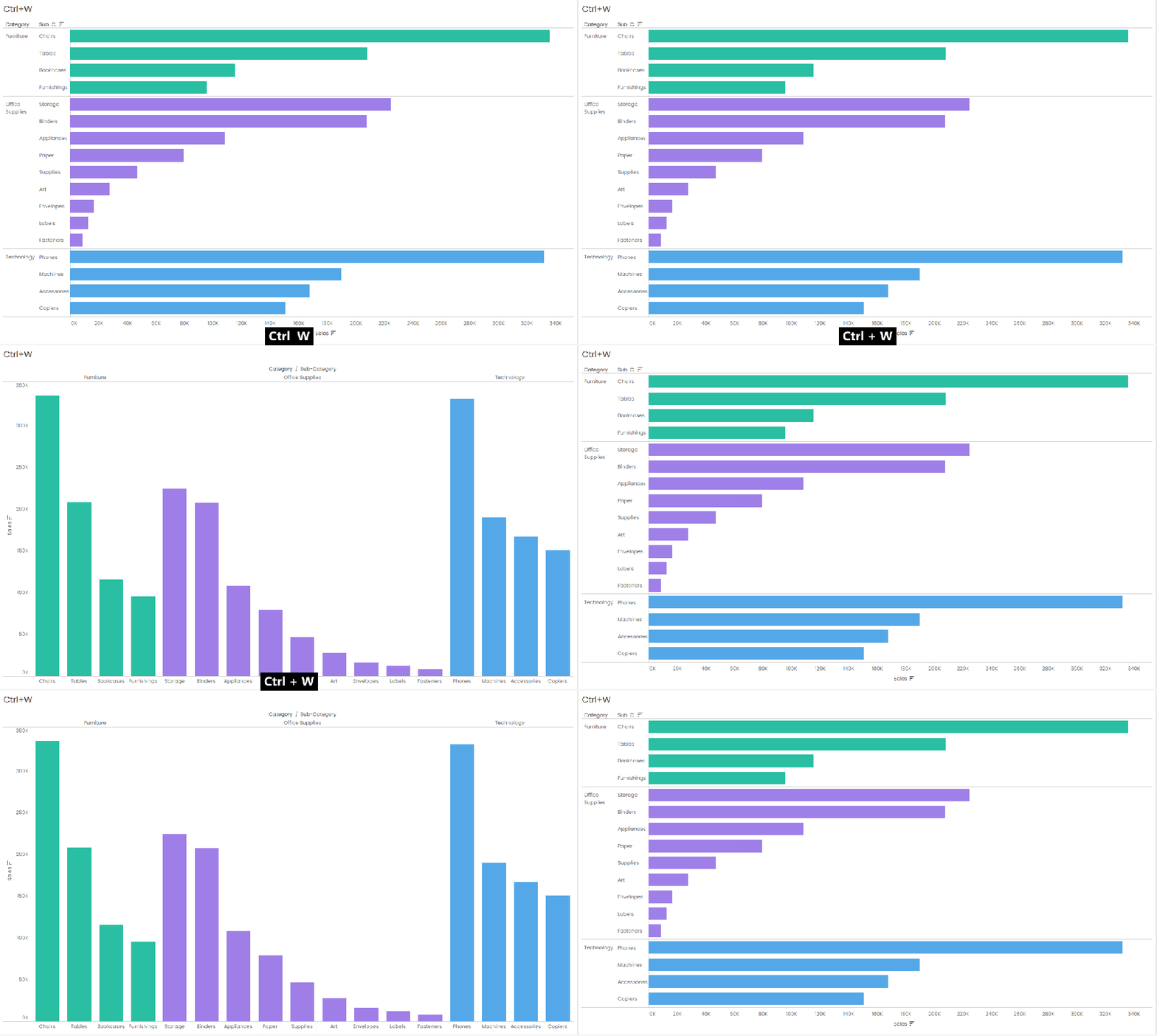
- Why I love it: Sometimes you build a chart and immediately realize the opposite orientation would work better. Sometimes you don’t come to that realization until you see it sitting on your dashboard. Ctrl + W swaps your rows and columns without rebuilding anything, and it works on a worksheet or from a dashboard.
7. F2
- What it does: Renames a field in the Data pane
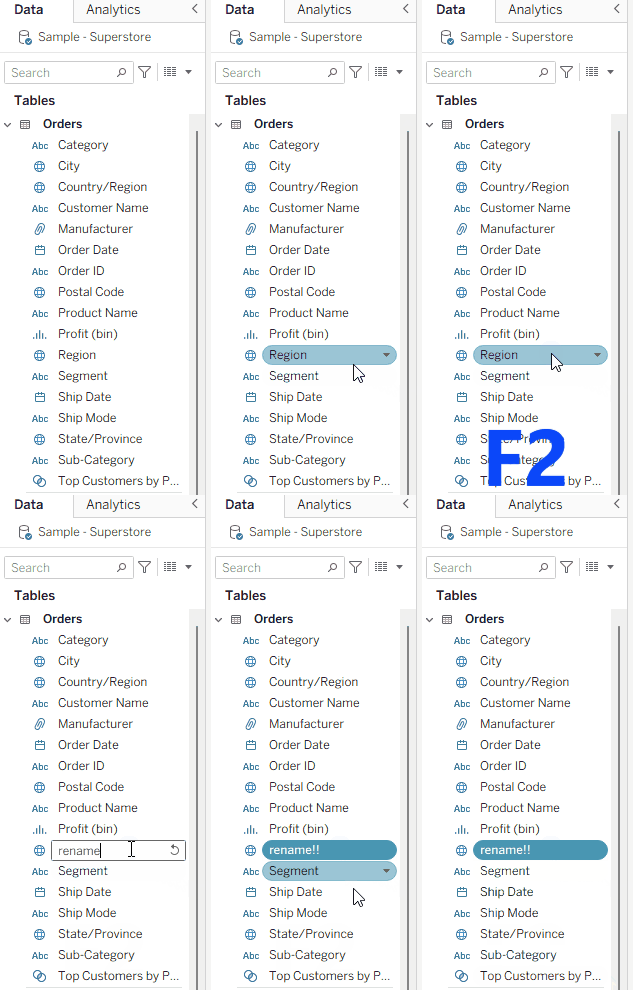
- Why I love it: Sure, you can rename a field by slowly double-clicking it, but that almost always turns into me double-clicking too quickly and accidentally adding the field to my view instead (sometimes I’m too fast for my own good!). You can also right-click and select “Rename”, but who has time for that? If you click on a field and press F2, you can rename it with no extra clicking required.
6. Ctrl + Arrow Keys
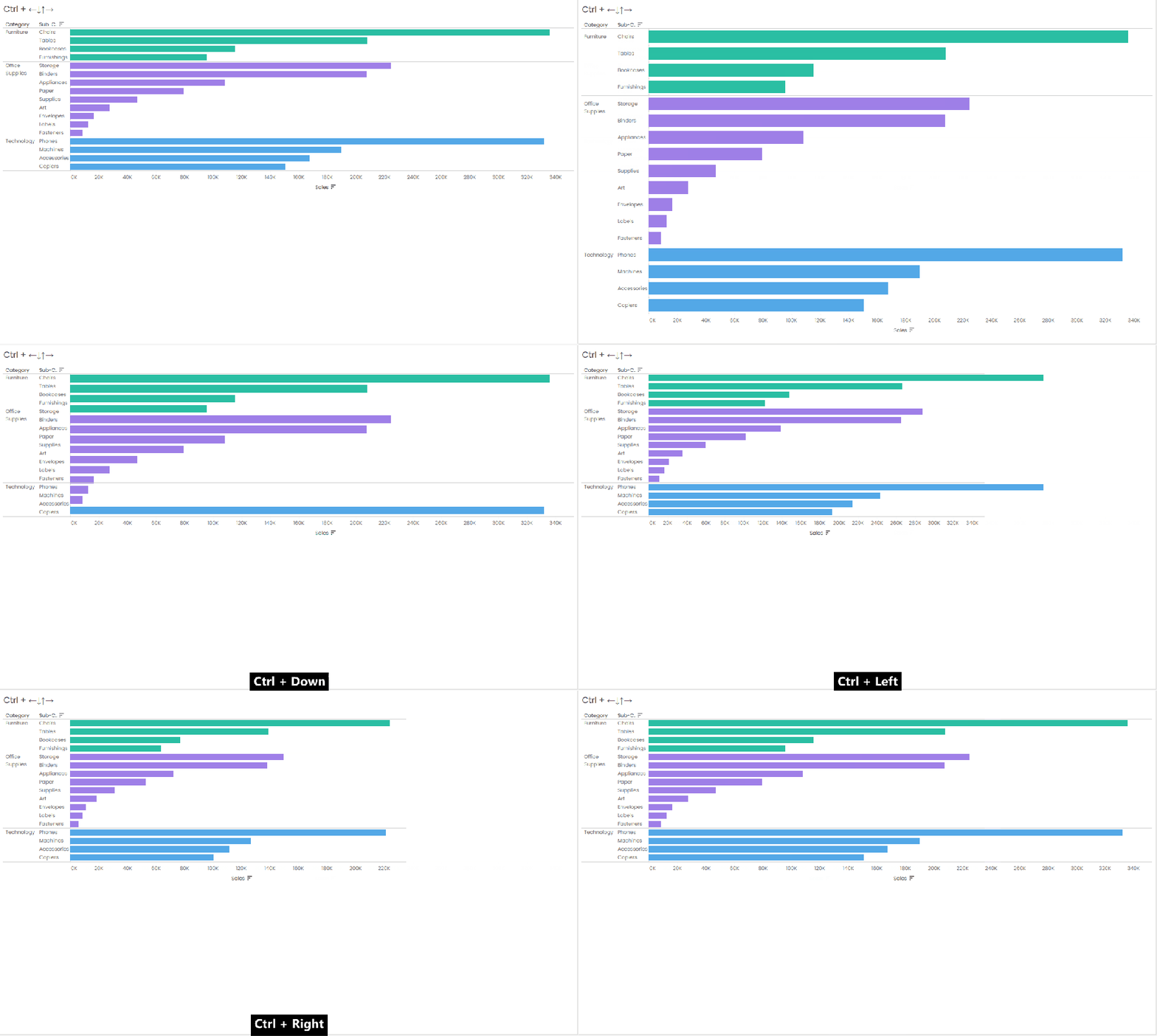
- What it does: Makes rows/colulmns wider/narrower
- Why I love it: Finding that tiny sweet spot where your cursor changes into a double-headed arrow to resize a column or row takes time that I don’t want to waste. Instead, Ctrl + Arrow Keys let you adjust width and height without having to find the exact right spot to click your mouse.
Halfway there! Time for a quick G&T 🍸
No, not that kind of G&T (although I won’t judge). The next two shortcuts on the list are G & T, and are two little keys that save me a lot of clicks.
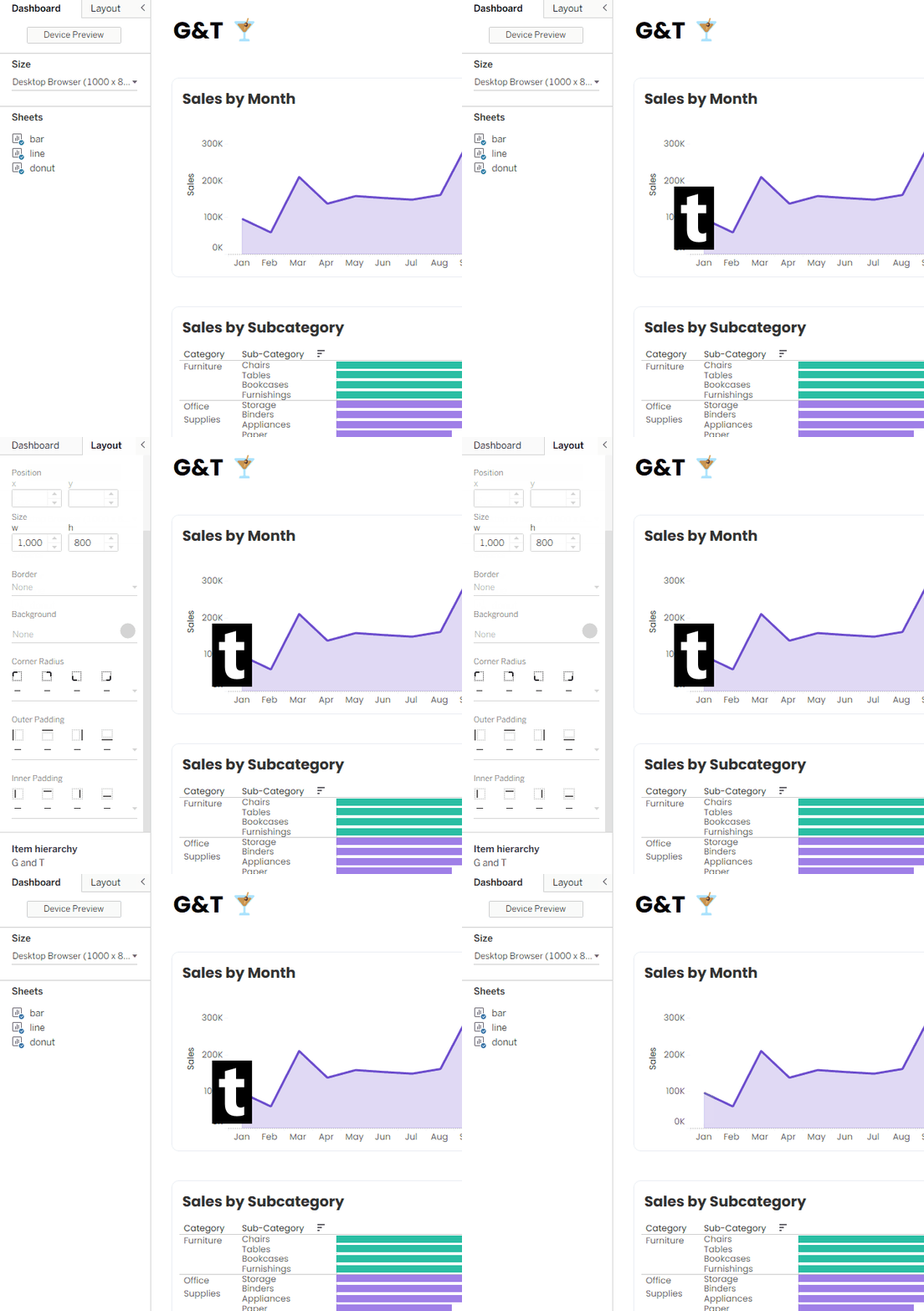
5. G
- What it does: Turns the dashboard grid on and off
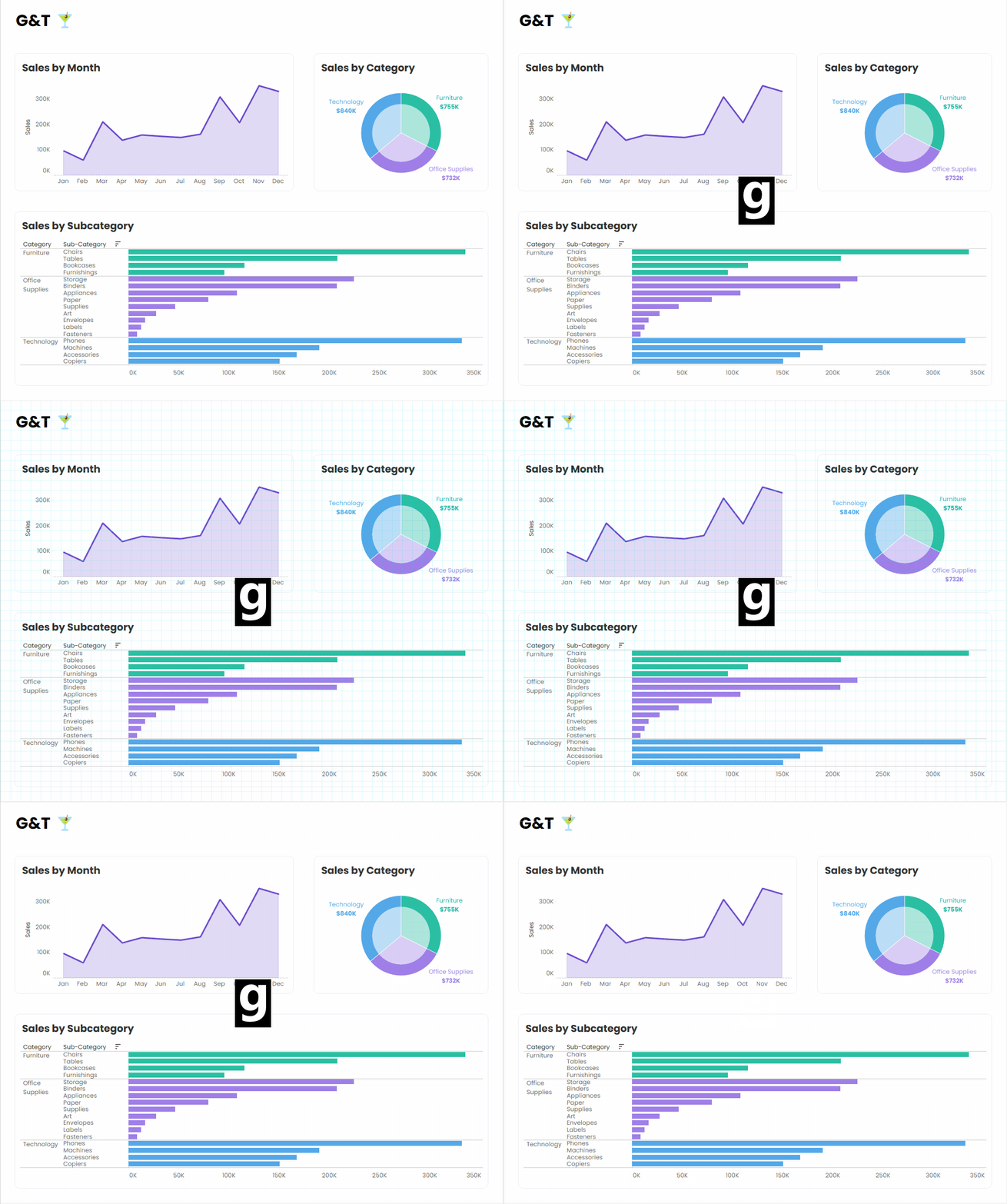
- Why I love it: I don’t like to work with a dashboard grid on (I find it distracting), but I often need it on to ensure things are properly aligned. When that happens, I don’t want to go hunt it down in the menu navigation. Instead, just hit G to turn the grid on! When you’re done lining things up, click G again to turn the grid off.
4. T
- What it does: Toggles between Dashboard and Layout pane
- Why I love it: When I’m building a dashboard, I’m constantly switching between Dashboard and Layout to add objects and then format them. Pressing T lets me switch back and forth without interrupting my flow.
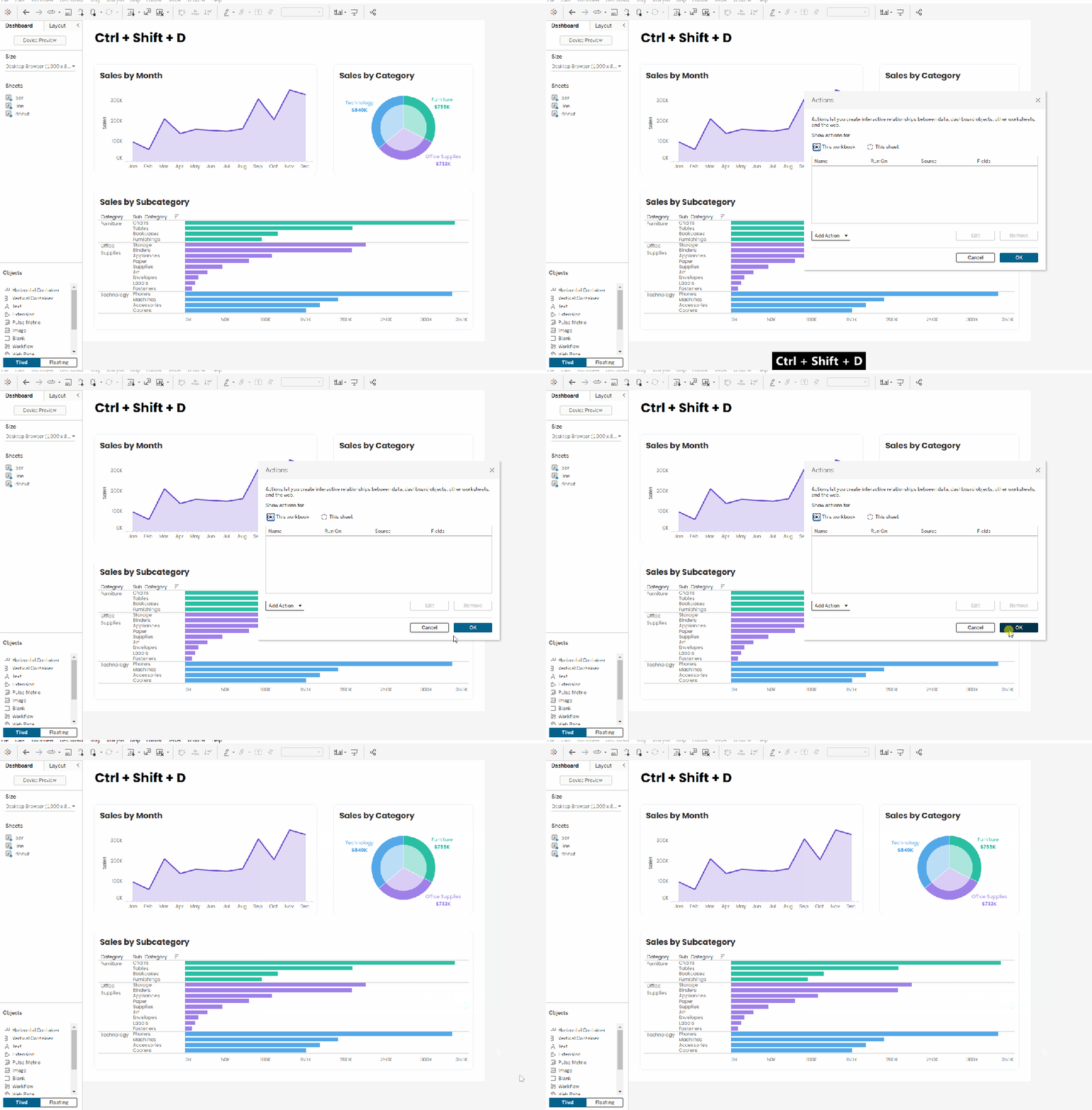
3. Ctrl + Shift + D
- What it does: Opens the dashboard action interface
- Why I love it: I use a lot of dashboard actions. Like…a lot. Parameter actions, filter actions, highlight actions, you name it! This shortcut opens the Dashboard Actions interface instead of navigating there through menus.
- BONUS: The hotkey to open actions on a worksheet is Alt + W + I
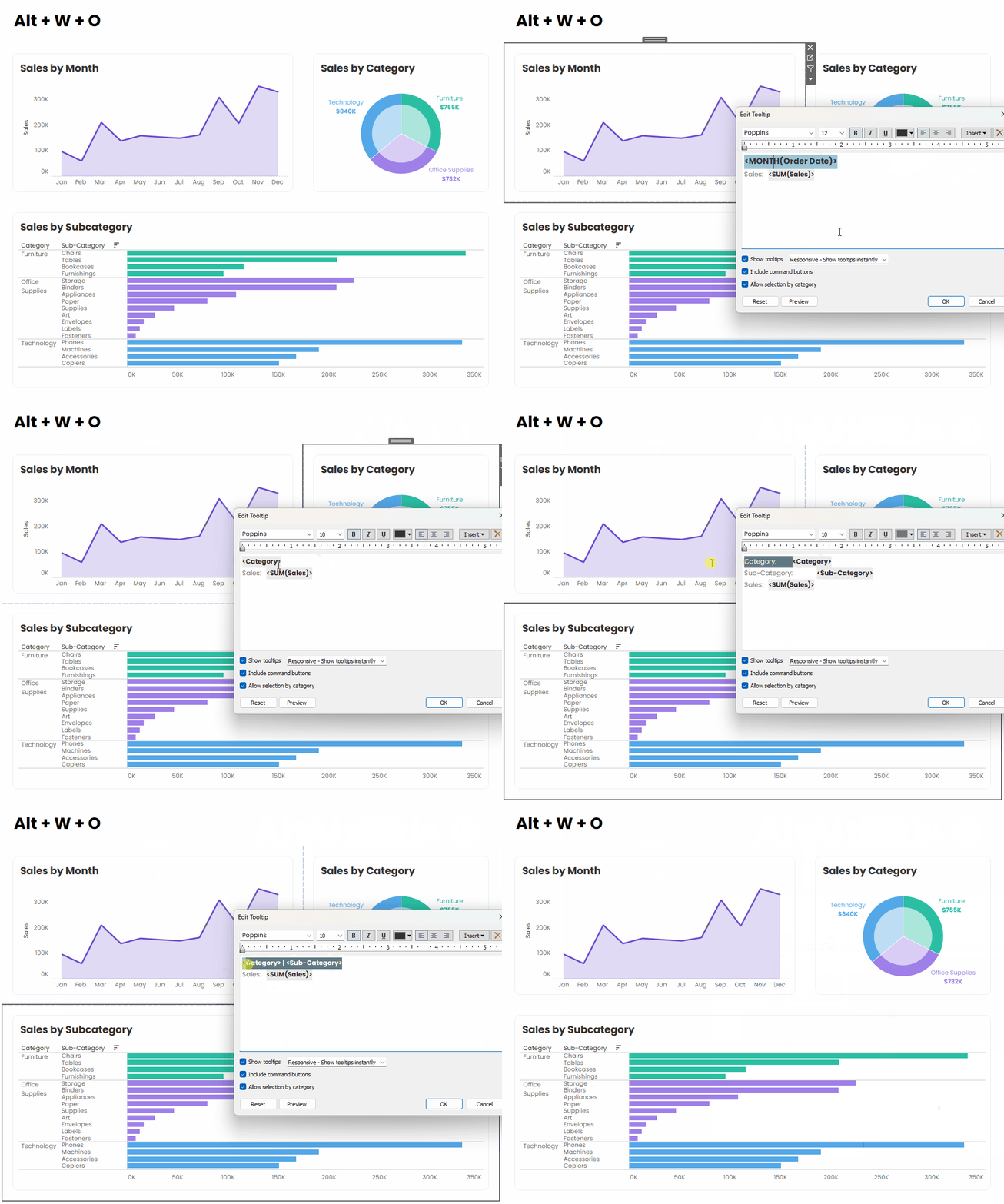
2. Alt + W + O
- What it does: Opens the tooltip interface
- Why I love it: First off, many thanks to Chris Westlake for sharing this tip in a Tableau Public TUG meeting and quickly making it my second favorite hotkey! While you can use this on a worksheet, I have found myself primarily using it to edit tooltips from a dashboard. When you’re on a dashboard, click on the sheet with the tooltip you want to edit, press Alt + W + O, and start editing your tooltip. It’s a fast way to edit tooltips of all your charts in quick succession.
- BONUS: Click Alt + I while you’re in the tooltip interface to uncheck “Include command buttons” (thank you Viraj Bhargrave for this one!).
Drumroll………..

My number one hotkey should come as a surprise to absolutely no one who has seen any of my Tableau presentations. It’s my favorite Tableau hotkey, my most-used shortcut, and the one that has saved me more clicks (and probably more hours) than any other.
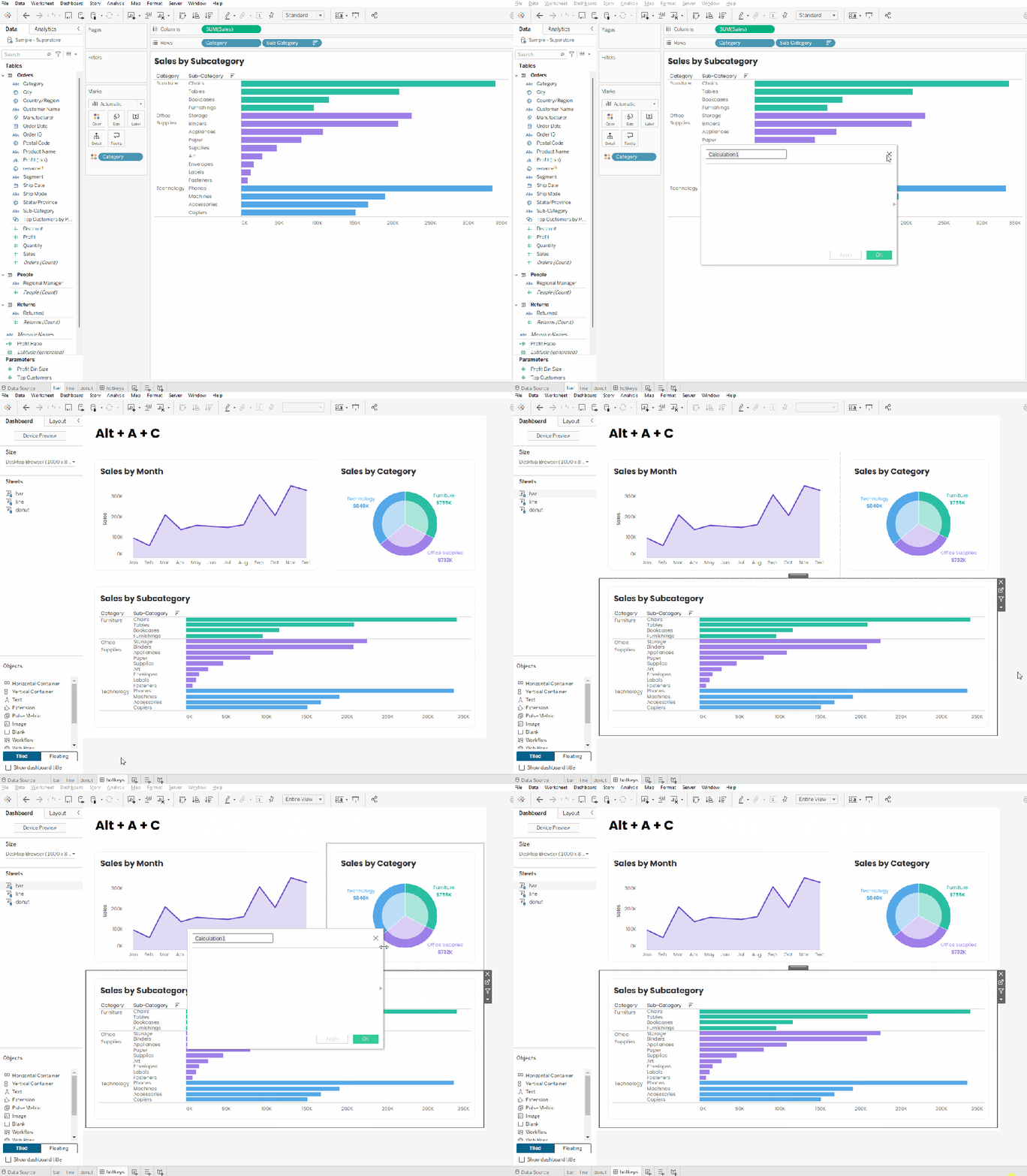
1. Alt + A + C
- What it does: Opens the calculated field window
- Why I love it: There are several ways to access the calculated field window in Tableau, but this is by far the fastest. And as someone who basically writes calculated fields for a living, this one has saved me countless hours. I use it constantly while on worksheets, but you can also access this from a dashboard. Click on any sheet on the dashboard, type Alt + A + C, write your calculation on the spot, and keep building without ever leaving your dashboard.
But wait, there’s more!
There is a whole world of hotkeys waiting for you that Tableau doesn’t include on their list of keyboard shorcuts. The secret ingredient? The Alt key! While most of us are familiar with the usual suspects (Ctrl+C, Ctrl+V, Ctrl+Z), fewer people realize that Tableau’s ribbon menus have their own built-in keyboard shortcuts. Once you discover this, an entirely new world of speed vizzing opens up.
When you press Alt on your keyboard, Tableau underlines the shortcut letter for each item in the menu bar. Notice the “F” is underlined on “File”, “D” on “Data”, “W” on “Worksheet”, etc.:

Once you select a menu (for example, pressing Alt + A for the Analysis menu), Tableau reveals a second set of shortcut letters for the options within that menu. These underlined letters are your next step in the sequence. Notice that “C” is underlined on “Create Calculated FIeld”, which is how we arrive at Alt + A + C:

So the next time you’re looking for a command, press Alt first. You might just find a faster way to get there!
Happy speed vizzing!


Leave a Reply